
Top Menu Interface Guide

 Announcements- This section displays all active announcements that users are authorized to view.
 Notifications- New notifications received related to processes. The purpose of these notifications is informational only and does not require approval.
 Approvals - Processes that have been sent to you for approval.
 Messages - Messages sent within processes.
Left Menu Guide:

 Using this button, the user can start a process, view the process history, and access reports.
 Home Page - This button redirects the user to the home page.

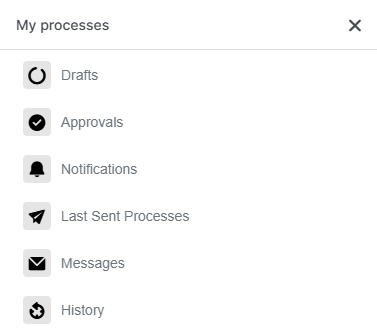
- Drafts - All unsent processes are stored here. Note: Processes are kept for one week and are automatically deleted after that.
- Approvals -Displays a list of processes approved in the last week.
- Notifications - The latest messages received related to processes.
- Last Sent Processes- A list of processes you have sent within the past week.
- Messages - A list of letters received in the past week related to processes.
- History - The history of all processes.
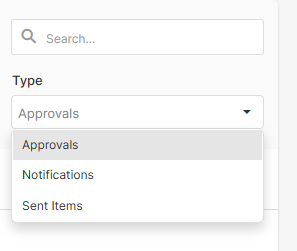
To search for a specific process:
1) Select the process type.
-
Approval Processes: A list of all processes you have approved.
-
Messages: A list of all messages received related to processes.
-
Sent Processes: A list of all processes you have sent.
2) Select the date range.

-
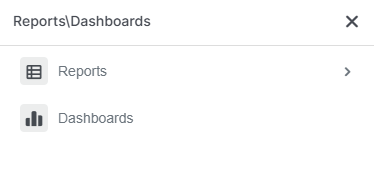
Reports – Special reports created based on processes.
-
Dashboards – Dashboard reports created based on processes.
Document Archive – Documents stored in the archive.


Start a new process:


My processes:
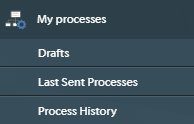
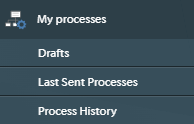
Drafts - All drafts are stored here.
Note: Processes are stored for a week, after they will be automatically deleted.
Last Sent Processes - You can find the processes you have started in the last week.
Process history:
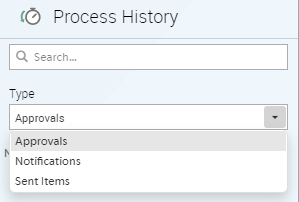
To search for a specific process:
1) Select The Process Type:
Approvals: a list of all processes that you have approved
Notifications: a list of all notifications received from the processes
Sent Items: a list of all processes that you have sent
2) Select a range of dates.


Reports:

Reports - Special reports about processes.

Dashboards - Dashboard reports.
Document archive: All documents list stored in the archive.