
BPM Interface guide
HOME SCREEN
It is the first screen that greets the user when logging into the web interface. The home screen allows users to to the transactions, processes and documents they use intensively, without the need for different screen orientations It is designed with the aim of providing quick access.
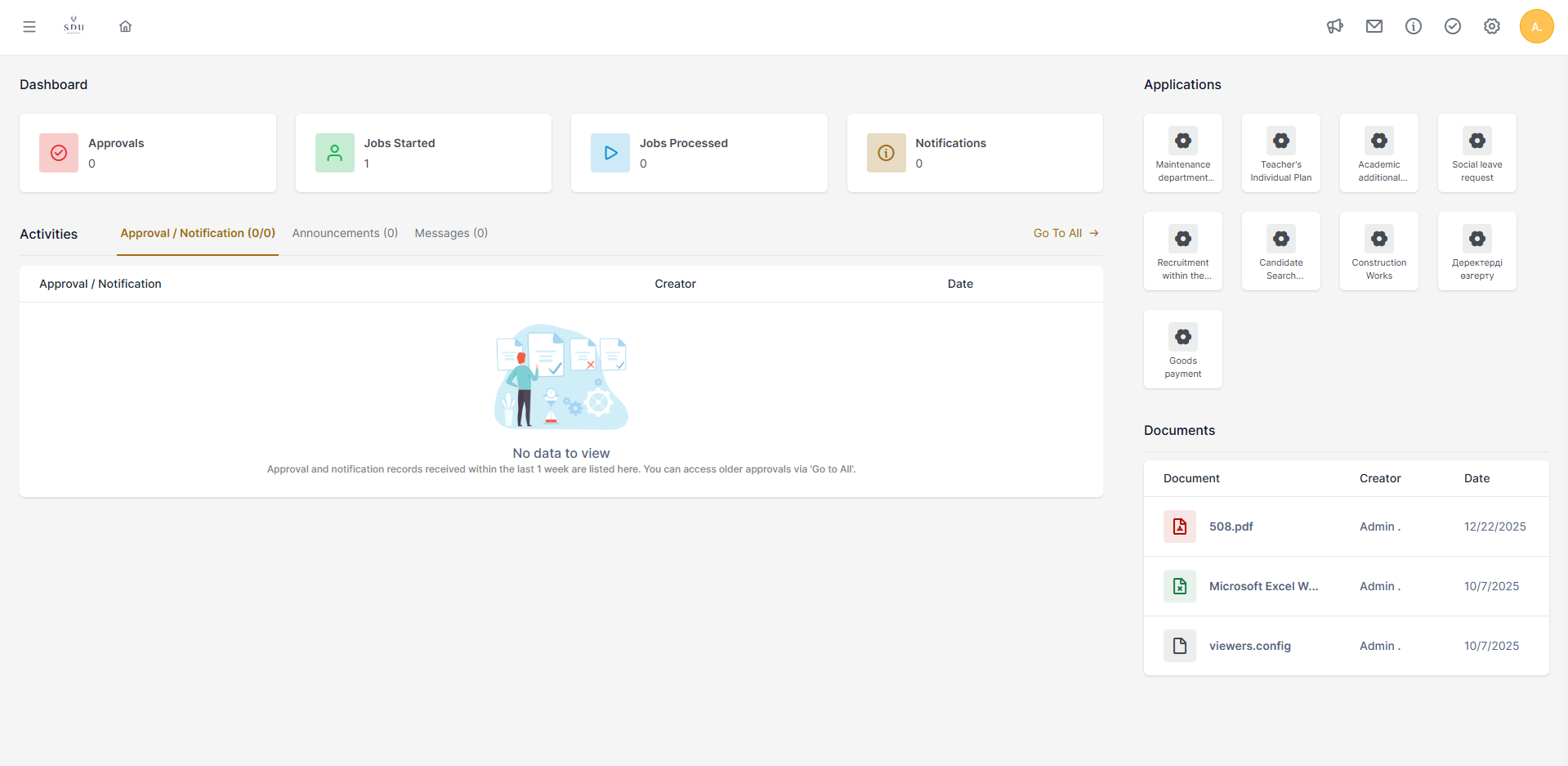
The Home Screen is generally 4 types: Dashboard, Activities, Applications and Documents. are grouped under the main heading. The content of these headings is the content of each user who logs into the interface, It is filled with data.
 Dashboard
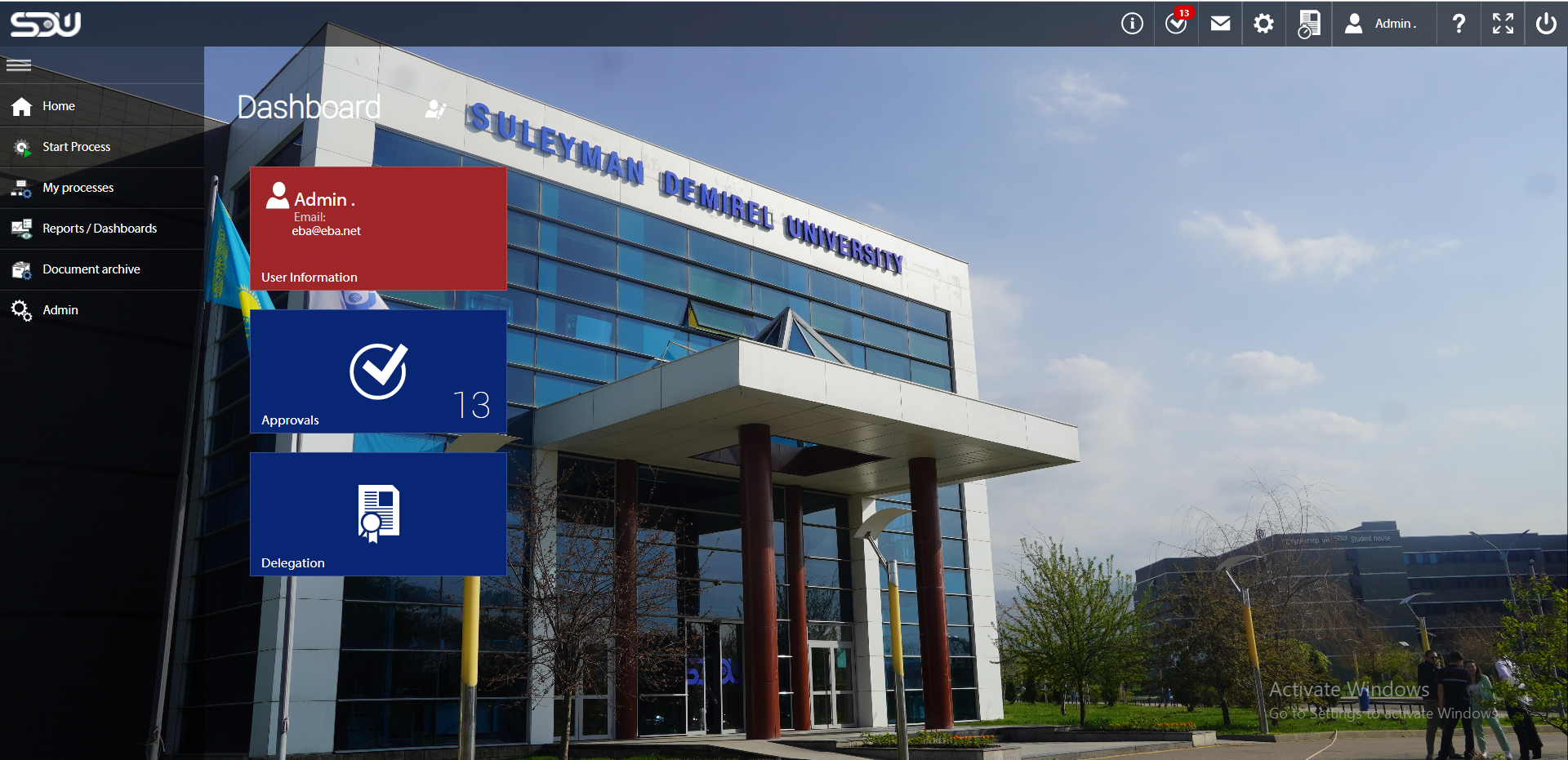
The number of processes waiting for the approval of the user who logs in to the interface, a certain time The number of processes it has started or processed in the range and the number of processes it has started within a certain period of time. The number of incoming notifications can be seen as dashboard boxes and when clicked, the relevant title It is the group that creates the quick access tiles where it can be directed to the detail screen.
Approvals, Last Sent Processes, My Processes and Notifications from the quick access boxes Occurs.

This dashboard displays the number of approval processes for the logged-in user.
This section shows the total number of processes pending approval for an individual user. Here, the tasks currently assigned to the user are listed and grouped by process.
Last Sent Processes
This dashboard shows the number of processes initiated by the logged-in user over the past week.
On the “Last Sent Processes” screen, you can see a list of processes you started during the past week. It allows you to easily view how many processes you initiated that week, their current status, and whether they have been completed.
My Processes
This dashboard shows the number of completed and ongoing processes handled by the logged-in user over the past week (excluding notifications and process initiations).
On the “My Processes” screen, you can view how many processes you worked on within one week, their status, and whether they have been completed.
Notifications
This dashboard shows the number of notifications received by the logged-in user over the past week.
Activities
This group allows users who log in to the interface to access approvals/notifications, announcements and message records directly from the homepage. This enables them to take quick action without navigating to detailed pages.
The group consists of the Approvals/Notification, Announcements, and Messages sections.
Approvals / Notification
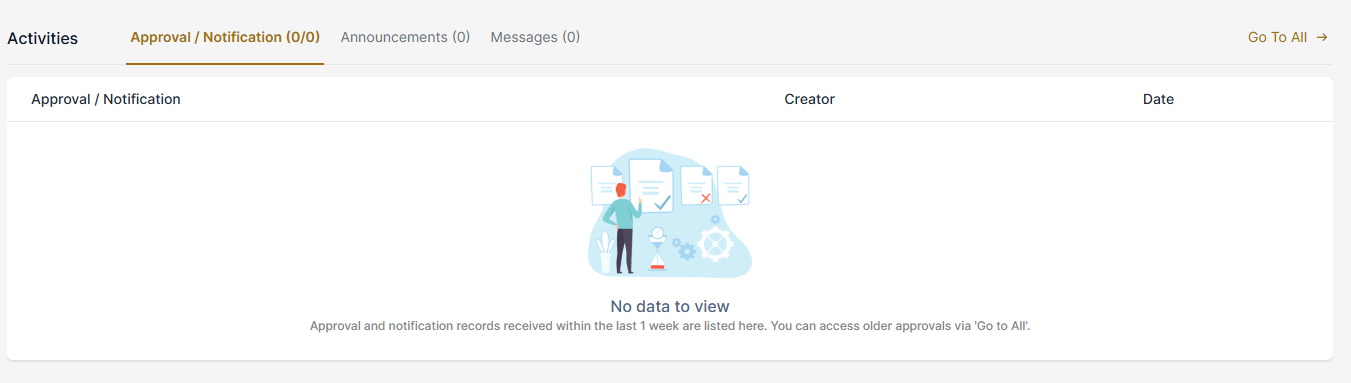
This section displays all approvals and notifications received by the logged-in user over the past week.
Approvals and messages are grouped by date and time as Today, Yesterday, This Week, and Last Week. Clicking the “Go to All” link redirects the user to the Approvals page, where all pending approvals are fully listed by process.
This section also shows all messages received during the past week that have not been deleted, as well as processes awaiting action. If the Quick Approval option is enabled in the process settings, action buttons appear at the end of the corresponding row. This allows the user to take quick action directly from this screen without navigating to an additional page.
By clicking any row in the list, the related form opens, allowing the user to continue working on that item.
Announcements
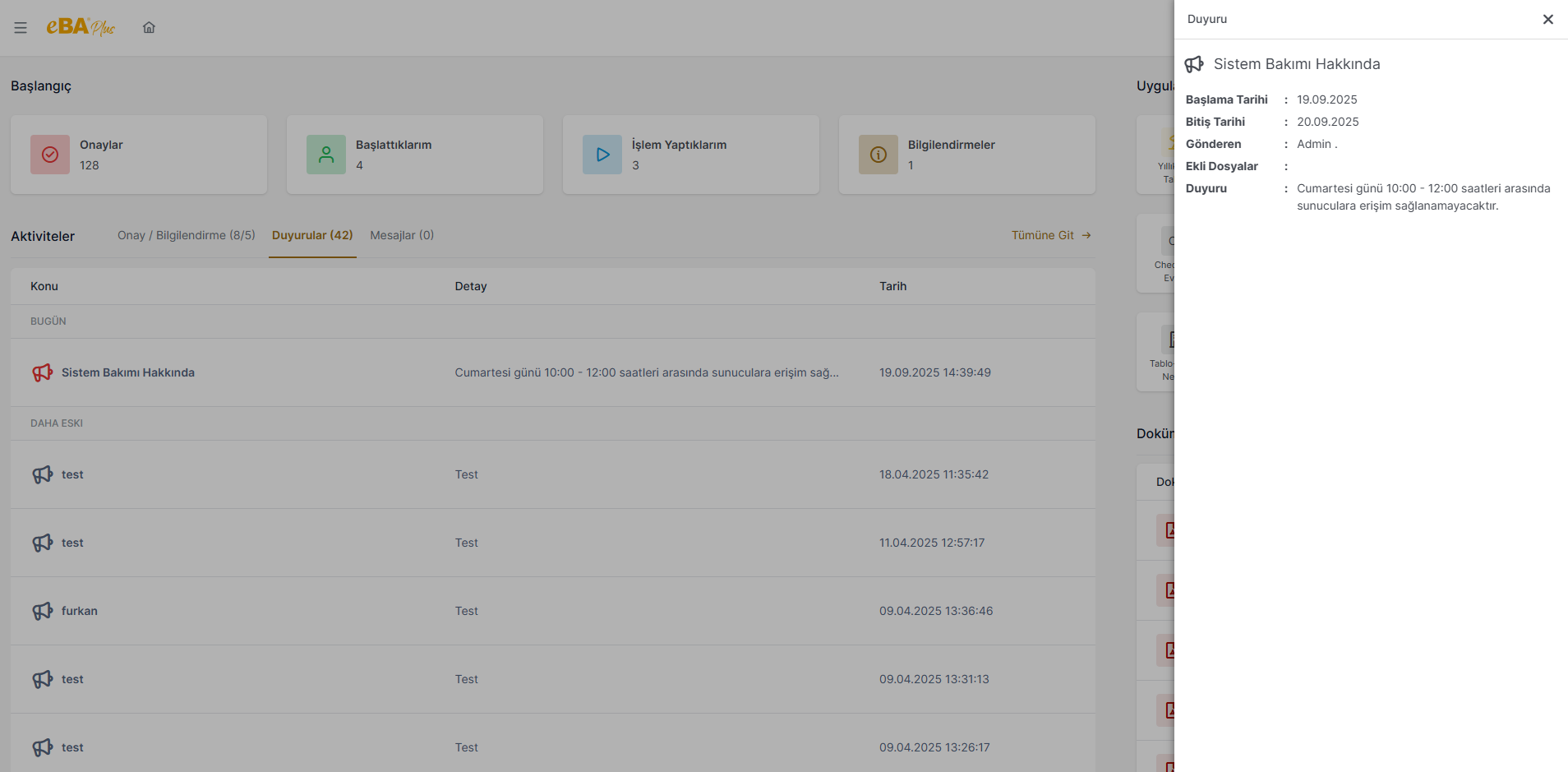
This section displays all active notifications that the logged-in user is authorized to view.
Notifications are grouped by date and time as Today, Yesterday, This Week, Last Week, and Earlier. Clicking the “Go to All” link redirects the user to the Announcements page, where all active and inactive notifications are listed, and where new notifications can be added or existing ones deleted.
Notifications marked as Important are highlighted in this list with a red notification icon.
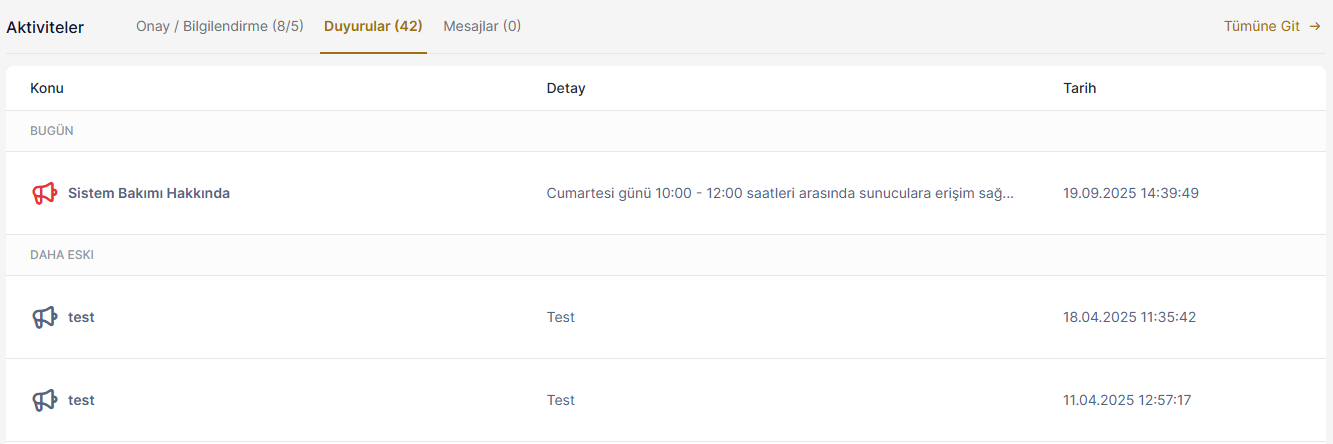
When one of the notifications listed is clicked, its full details are displayed in an expandable panel.
Messages
This section displays all messages received by the logged-in user over the past week that have not been deleted.
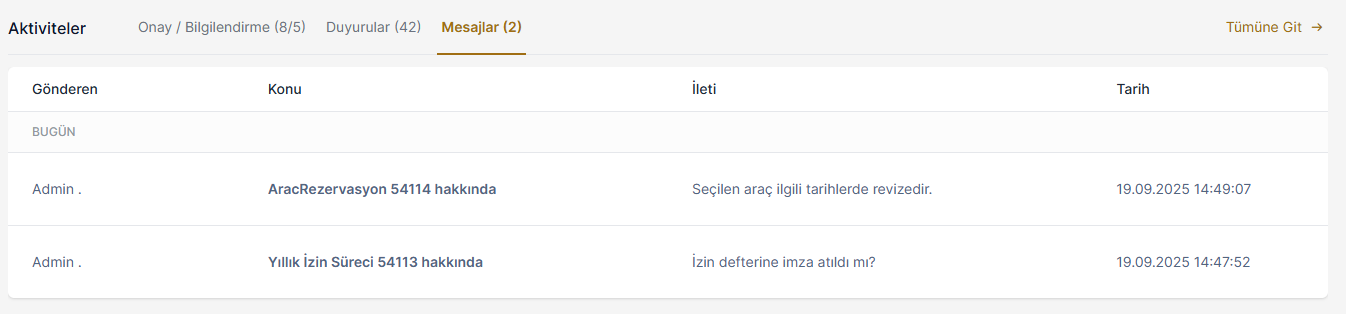
This section displays all messages received by the logged-in user within the past week that have not been deleted.
Message logs are grouped by the date and time they were received into Today, Yesterday, This Week, Last Week, and Earlier sections. Clicking the “Go to All” link redirects the user to the Messages page, where sent and received messages can be viewed and deleted.
When any entry in the list on the Messages page is clicked, a panel opens displaying the full message details. The user can reply to the message by clicking the “Reply” button or select “Show Flow” to view the detailed process by which the message was generated in the system.
Processes
This section displays menu items such as favorite and recently used processes, archives, and forms.
This feature allows users who log in to the interface to quickly access their most frequently used applications from the homepage with a single click.
 Notifications - new notifications about processes.
!Purpose of the notification: there is no need to approve, it is sent in order to notify you about the process.
 Approvals - a list of new processes that you need to approve/reject.
 Messages - sent/received messages from processes.
 Delegations - If for some reason you are not at work, you can give delegation to someone. Here is the list of all taken/given delegations.


 Instructions - General instructions for the system.
 Full screen view
 Login / Exit
Start a new process:
My processes:
-
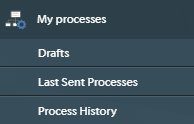
Drafts - All drafts are stored here.
Note: Processes are stored for a week, after they will be automatically deleted.
-
Last Sent Processes - You can find the processes you have started in the last week.
-
Process history:
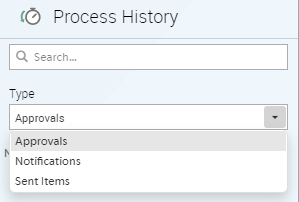
To search for a specific process:
1) Select The Process Type:
-
Approvals: a list of all processes that you have approved
-
Notifications: a list of all notifications received from the processes
-
Sent Items: a list of all processes that you have sent
2) Select a range of dates.


Reports:
 Reports - Special reports about processes.
 Dashboards - Dashboard reports.
Document archive: All documents list stored in the archive.